UTM parameters are short tags you add to the end of a URL, like ?utm_source=facebook&utm_medium=social&utm_campaign=spring-sale, so Google Analytics can tell exactly where a click came from. Three are required for useful tracking: utm_source, utm_medium, and utm_campaign. The data shows up in GA4 under Reports > Acquisition > Traffic acquisition.
By the end of this guide, you’ll know how to tag your links with UTM parameters so you can see exactly which campaigns, emails, and social posts send traffic to your site, and which ones lead to actual conversions.
Without them, GA4 guesses. That email you sent last week? Those clicks probably landed in your reports as “direct” traffic, mixed in with people who typed your URL by hand. UTM parameters replace the guessing with labels you control.
You’ll need GA4 installed and collecting data on your site. If you’re new to Google Analytics, start with the GA4 beginner’s guide first, then come back here.
What are UTM parameters?
UTM parameters are bits of text you add to the end of a URL to tell Google Analytics where a visitor came from. Here’s what a tagged link looks like:
https://yoursite.com/pricing?utm_source=facebook&utm_medium=social&utm_campaign=spring-saleIn plain English: when someone clicks that link, GA4 reads the tags after the question mark and files the visit under Facebook, social, and your spring sale campaign. The page the visitor sees is identical. Only the reporting changes.
The name “UTM” stands for Urchin Tracking Module, after the software that eventually became Google Analytics. The name doesn’t matter. What matters is that these five tags are the standard way to label traffic, and most analytics tools understand them.
UTM parameters are one half of the measurement picture. They show where visitors came from. Conversion tracking shows what those visitors did after they arrived. Put the two together and you can say “this email drove 40 sign-ups” instead of “this email got some clicks.”
The five UTM parameters explained
There are five UTM parameters. Three are required for useful tracking, and two are optional extras for paid campaigns.
| Parameter | Required? | What it tracks | Example |
|---|---|---|---|
utm_source | Yes | Where the click came from | facebook, newsletter, partner-site |
utm_medium | Yes | The channel type | social, email, cpc, referral |
utm_campaign | Yes | The campaign name | spring-sale, weekly-digest |
utm_term | No | The paid search keyword | running-shoes |
utm_content | No | The link or ad variation | header-cta, blue-button |
Here’s how to think about each one:
- utm_source answers “which site or tool sent this person?” A specific place:
facebook,google,newsletter. - utm_medium answers “what kind of channel is that?” A category:
social,email,cpc(cost per click, meaning paid search ads). - utm_campaign answers “which push was this part of?” The name you gave the effort:
spring-sale,product-launch,2026-07-weekly. - utm_term records the keyword in a paid search campaign. Skip it everywhere else.
- utm_content separates two links in the same campaign, like the header link versus the footer button in one email. Useful when you want to know which placement gets clicked.
Always fill in source, medium, and campaign. A link with a source but no medium leaves GA4 unable to group the traffic with the right channel, and you end up with an “unassigned” row in your reports.
When to use UTM parameters (and when not to)
Use UTM parameters for:
- Email campaigns and newsletters
- Organic social media posts
- Paid ads on platforms other than Google (Facebook, Instagram, LinkedIn, TikTok)
- Partner and affiliate links, guest posts, sponsorships
- QR codes on print materials
- Offline campaigns that point to a URL (podcast mentions, direct mail)
Don’t use UTM parameters for:
- Links between pages on your own website
- Google Ads (auto-tagging handles it, more on that below)
- Organic search results (GA4 detects those on its own)
Adding UTM tags to links within your own site overwrites the session’s campaign, source, and medium mid-visit. A visitor who arrived from a Google search clicks your tagged sidebar banner, and GA4 now reports them as “sidebar-cta” traffic instead of organic search. Your source data becomes fiction. Tag links that point to your site from somewhere else, never links from your site to itself.
What about Google Ads? Google Ads has auto-tagging, a setting that adds its own parameter (called gclid) to every ad click. It passes more detail than manual UTMs, including keyword and match type, so leave it on and skip manual tagging there. If your Google Ads data isn’t showing in GA4 at all, the fix is linking GA4 and Google Ads, not UTM tags.
Build and use your UTM links in four steps
Build your link right here. It runs entirely in your browser, updates as you type, and nothing is sent anywhere. Or follow the four steps below to do it in Google’s builder and see where the data lands in GA4.
https://. newsletter, facebook. email, social, cpc. spring-sale. header-cta. Build your UTM links
Open Google’s Campaign URL Builder. It’s a free tool from Google that assembles the tagged URL for you, so you never have to type question marks and ampersands by hand.
Fill in the fields:
- Website URL: the full page you’re linking to, like
https://yoursite.com/pricing - Campaign source: where the link will live, like
newsletter - Campaign medium: the channel type, like
email - Campaign name: your campaign label, like
2026-07-launch - Campaign term and Campaign content: leave blank unless you need them
The tool builds the final URL in the box at the bottom as you type.
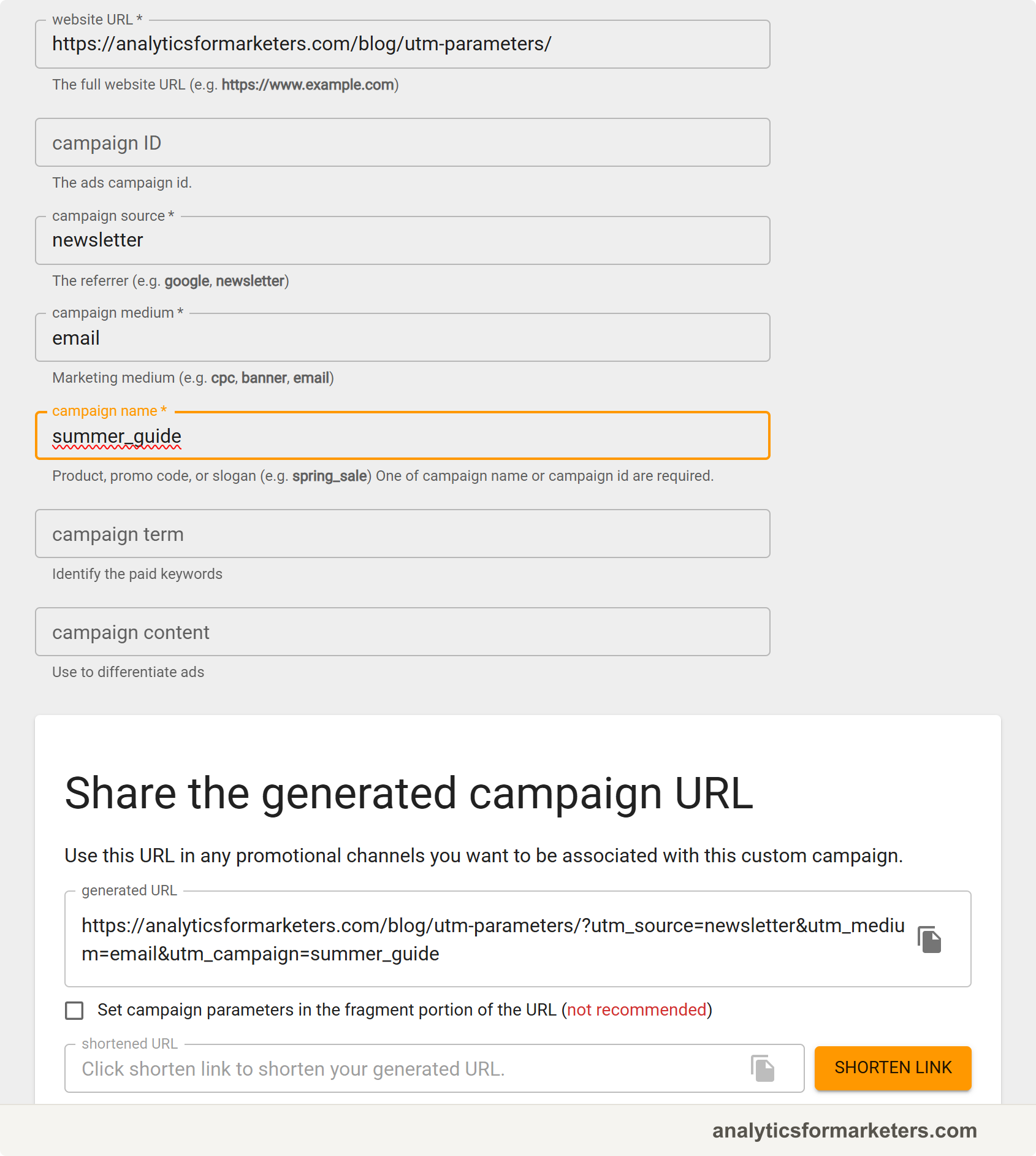
a long URL ending in ?utm_source=newsletter&utm_medium=email&utm_campaign=2026-07-launch. That’s your tagged link. Copy it.
https://yoursite.com/pricing?utm_source=newsletter&utm_medium=email&utm_campaign=2026-07-launchShorten your links (optional but recommended)
A full UTM link is long and looks messy in a social post or a printed QR code. A URL shortener (a tool that turns a long link into a short redirect) cleans it up.
Options:
- Bitly: free tier, click counts included
- A short-link plugin on your own site (Pretty Links for WordPress, for example)
- Your email or social tool’s built-in shortener
The UTM parameters survive the shortening. When someone clicks the short link, they’re redirected to the full tagged URL, and GA4 reads the tags as usual.
Use your UTM links in campaigns
Paste the tagged (or shortened) URL wherever the link goes: the button in your email, the link in your Instagram bio, the destination URL in your Facebook ad, the QR code generator for your flyer.
From this point on, every click on that link arrives at your site carrying the source, medium, and campaign you chose. There’s nothing to install and nothing to configure in GA4. The tags do the work.
Want to check it right away? Click your own tagged link, then open Reports > Realtime in GA4.
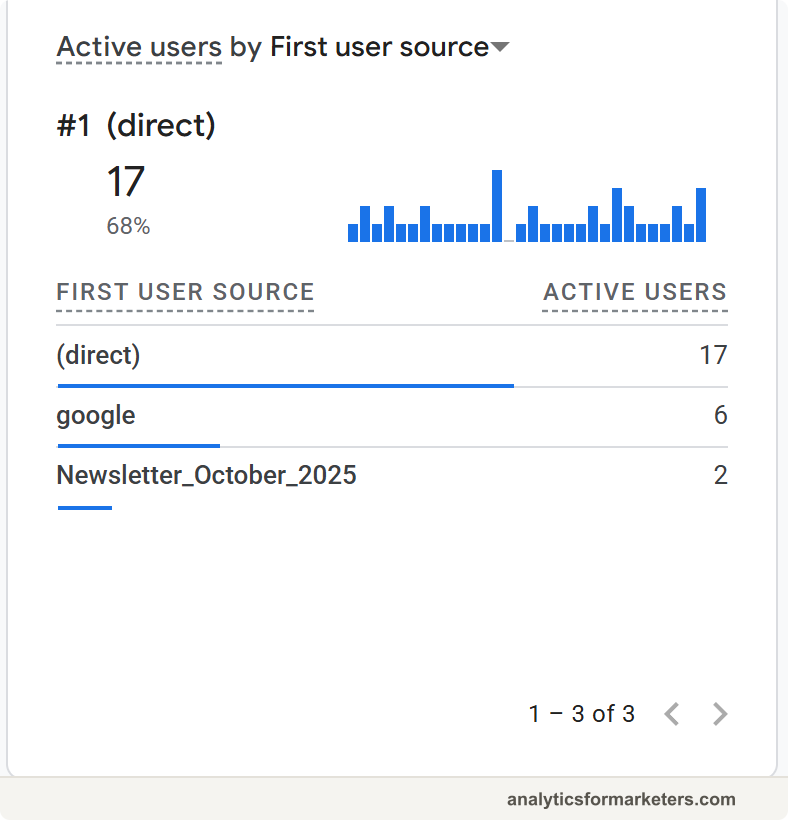
your visit in Realtime within a few seconds, filed under the exact source, medium, and campaign you typed into the URL builder.
See your UTM data in GA4 reports
Campaign data lands in the acquisition reports. Give it 24 to 48 hours after the first clicks, then open:
Reports Acquisition Traffic acquisitionThis report groups sessions by session source / medium, so your newsletter / email traffic gets its own row. To see campaign names instead, click the arrow next to the primary dimension (the first column header) and choose Session campaign.
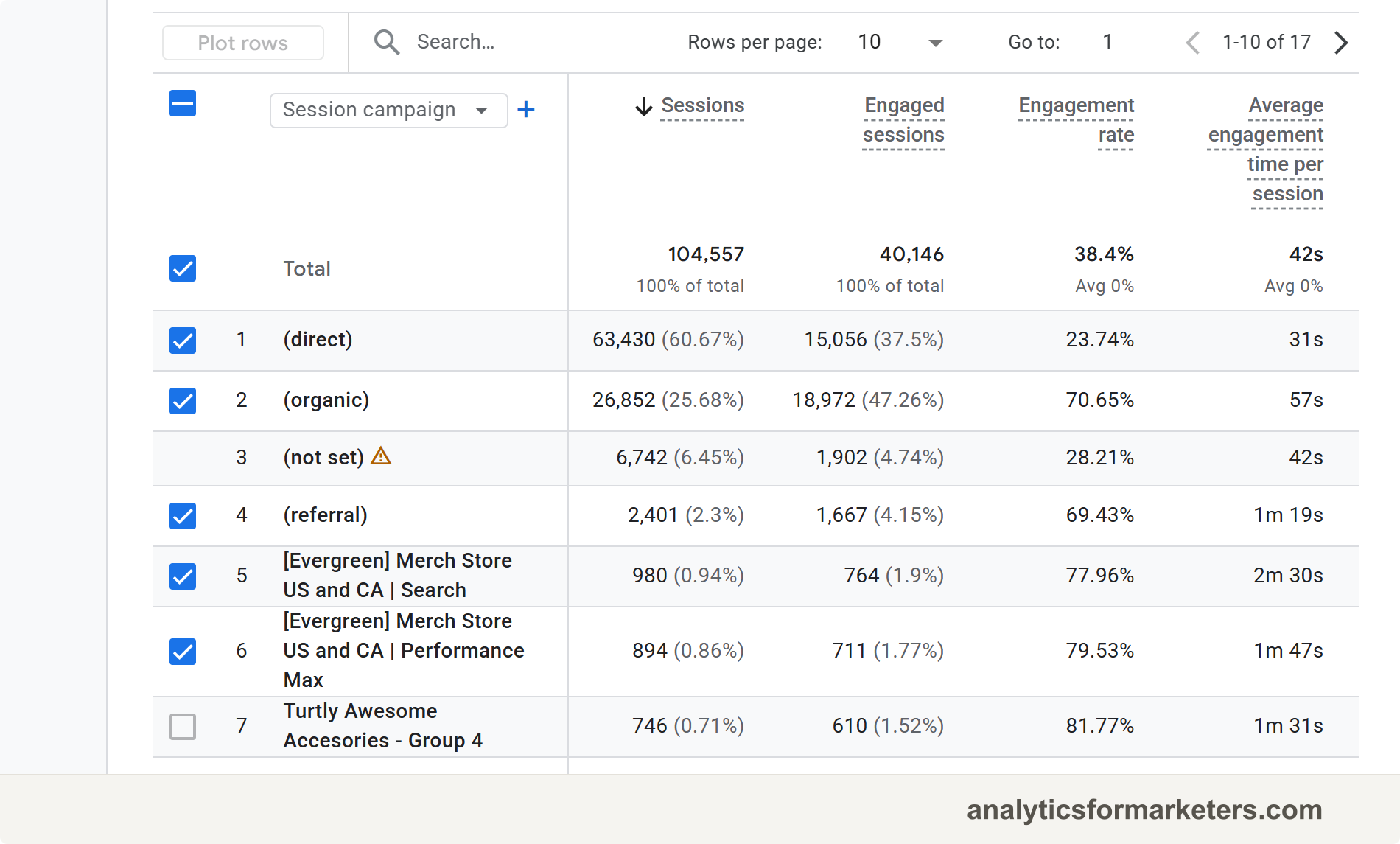
One more report worth knowing: Reports > Acquisition > User acquisition. Traffic acquisition shows where each session came from. User acquisition shows where each person came from the first time they ever visited. Use it to see which campaigns bring in new people rather than repeat visits.
Checking this report row by row gets old fast. If you want to see your UTM data in your dashboard alongside your other key numbers, that guide shows you how to build one you can check weekly.
A naming convention that keeps your data clean
Here’s the part where most UTM setups fall apart: inconsistent naming. GA4 treats UTM values as case-sensitive text, which means Facebook, facebook, and fb create three separate rows in your reports. Your Facebook traffic gets split three ways and every row looks smaller than the truth.
A naming convention (a written set of rules for how you name things) prevents this. Four rules cover almost everything:
- Always lowercase.
facebook, neverFacebook. - Hyphens instead of spaces.
spring-sale, neverspring sale. Spaces turn into%20in URLs and make your reports harder to read. - One name per source, forever. Pick
facebookand never writefb. Picknewsletterand never writeemail-list. - Standard mediums. Stick to a short list:
email,social,paid-social,cpc,referral,print. Standard values likeemail,cpc, andsocialmap to GA4’s default channels. Nonstandard mediums likeprintland in the Unassigned channel, though you can still see them under Session source / medium.
For campaign names, a date prefix keeps things sorted: 2026-07-product-launch beats product-launch-new.
If more than one person builds links, start a shared spreadsheet with columns for the final URL, source, medium, campaign, and date. Everyone logs their links there and copies existing values instead of inventing new ones. Ten minutes of setup saves you from a report with six spellings of “newsletter.”
UTM templates for common campaigns
Steal these. They follow the naming rules above, and they cover the campaigns most marketers run.
| Campaign type | utm_source | utm_medium | utm_campaign |
|---|---|---|---|
| Email newsletter | newsletter | email | 2026-03-weekly |
| Facebook organic post | facebook | social | spring-sale |
| Instagram paid ad | instagram | paid-social | spring-sale |
| Partner blog link | partner-name | referral | guest-post-march |
| QR code on flyer | qr-code | print | store-flyer-march |
A filled-in example for the newsletter row:
https://yoursite.com/blog/new-post?utm_source=newsletter&utm_medium=email&utm_campaign=2026-03-weeklyNotice the pattern: the source and medium stay fixed for each channel, and only the campaign name changes between sends. That consistency is what makes the reports readable six months from now.
Once tagged traffic is flowing, this data gets more useful outside GA4 too. In a Looker Studio report you can put campaign, source, and medium next to your page-level numbers and see which campaigns drive readers to which posts. The content performance dashboard guide walks through building exactly that.
Troubleshooting: the four most common UTM mistakes
1. Inconsistent naming. Mixed spellings and capitalization split one channel across several rows, and each row understates your real traffic. Pick lowercase with hyphens, write the convention down, and point your team at it.
2. UTM tags on internal links. This is the one from the warning above, and it’s worth repeating because it quietly ruins your data. A tagged internal link overwrites the session’s source, medium, and campaign mid-visit, so a visitor who arrived from Google suddenly reports as “sidebar-cta.” Never tag links from your own site to your own site.
3. Missing utm_medium. Without a medium, GA4 can’t place the traffic in the right channel group, and sessions land in an “unassigned” bucket. Always include source, medium, and campaign at minimum. The URL builder makes medium a required field for this reason.
4. Spaces in parameter values. A space in a UTM value gets encoded as %20 and can split your data or break the link in some email clients. Use hyphens: spring-sale, not spring sale.
If your campaign data isn’t showing at all, check three things in order. First, click your own tagged link and watch Reports > Realtime; if the visit appears with the right source, the link works. Second, confirm you waited 24 to 48 hours, since standard reports lag behind Realtime. Third, paste your link into a browser and make sure it starts with a single ? and joins parameters with &; a stray second question mark breaks every parameter after it.
What to do next
You can now tag a link, run it in a campaign, and find the results in GA4. Three ways to build on that:
- Connect the clicks to outcomes. Traffic is only half the story. Set up conversion tracking so you can see which campaigns produce sign-ups and sales, not clicks alone.
- Put the data where you’ll look at it. Build a GA4 dashboard with your campaign numbers front and center.
- Tag everything for two weeks. Every email, every social post, every partner link. After two weeks, open Traffic acquisition with Session campaign as the primary dimension. That report is your first honest answer to “where does our traffic really come from?”